
How to Compress a PDF to 1MB, 500KB, 200KB or 100KB
September 19, 2026
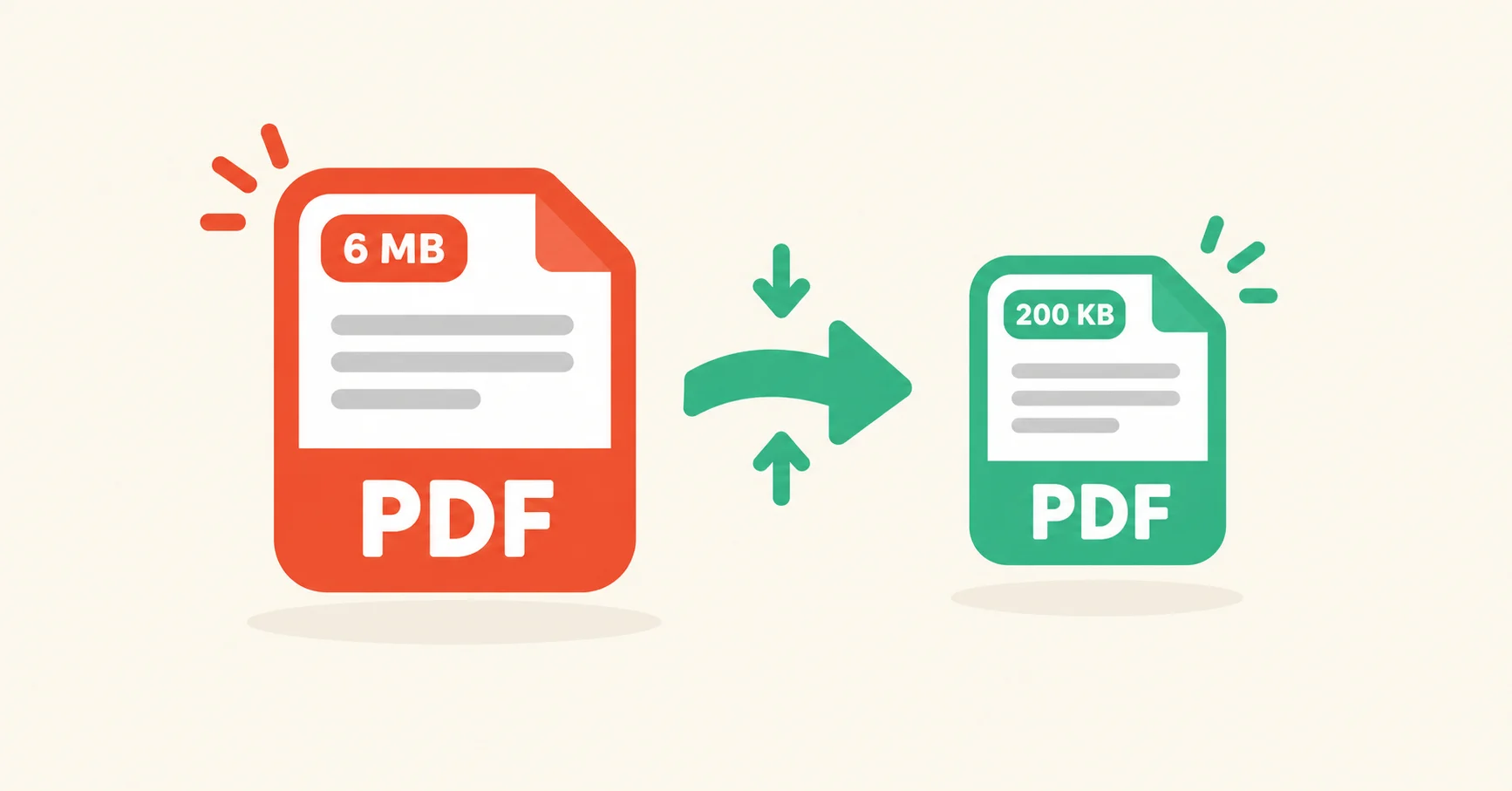
An upload form says "maximum file size: 200 KB" and your PDF is 6 MB. It happens constantly with job applications, exam registrations, visa portals, bank forms and support tickets, and the limit is almost always one of four numbers: 1 MB, 500 KB, 200 KB or 100 KB.
This guide explains how to compress a PDF to 1MB, 500KB, 200KB or 100KB. Just as useful, it explains why some PDFs shrink to a fraction of their size while others barely move. We build MonsterConvert's PDF compressor, so where it helps I'll say what the tool actually does instead of waving my hands.
The short version
- A PDF made of scanned pages or photos has plenty of room to shrink, because most of its weight is pictures, and pictures can be recompressed.
- A PDF exported from Word or Google Docs is mostly text and fonts. There's little to squeeze, so it may barely change.
- The easiest route is to enter the size you need and let the tool find the best quality that fits, instead of guessing at a quality slider.
- If a file won't reach the target, try grayscale first, then splitting it, then rescanning at a lower resolution. Turning every page into a picture is the last resort, because the text stops being searchable.
Here's roughly what each limit is used for and how much document fits under it:
| Target | Common use | Roughly how much fits |
|---|---|---|
| 1MB | Contracts, invoices, bank statements | 10 to 20 scanned pages |
| 500KB | Email attachments, ticket systems, bank and insurance forms | 5 to 10 scanned pages |
| 200KB | CVs, cover letters and supporting documents on job portals | A CV with a photo, or 2 to 3 scanned pages |
| 100KB | A single scanned certificate, ID card or one-page form on a government or exam site | About 1 scanned page |
Treat these as rules of thumb. A clean black-and-white scan fits more pages than a color photo of the same page.
Why some PDFs are huge and others aren't
Open a PDF exported from Word and a PDF scanned with your phone, and they look about the same on screen. Inside, they're built very differently.
An exported document stores its text as text, plus the fonts it needs. That's compact, and a 10-page report with no photos is often small already.
A scanned document stores every page as a photograph. Take an A4 page scanned at 300 dpi: that's about 2,480 by 3,508 pixels, close to 8.7 million pixels for a single page. Scan the same page at 150 dpi and you get about 1,240 by 1,754 pixels, a quarter as many. Same page, same words, a quarter of the data. Multiply that by however many pages you scanned and you can see how a short document ends up at 8 MB.
So the images are almost always where the savings are. Compressing a PDF to a target size means recompressing those images at a lower JPEG quality and, when they're larger than they need to be, at a smaller pixel size. Text, fonts and links aren't touched, which is why the text stays sharp and searchable.
There's one limit worth knowing. MonsterConvert recompresses images stored as JPEG, which is common for scans and camera photos. Images stored other ways, such as PNG-style images, images with transparency and CMYK images, are left as they are, and the result tells you how many it skipped.
How to compress a PDF to a specific size
- Open the page for the size you need: 1MB, 500KB, 200KB or 100KB. The target is already filled in. For any other limit, open the general Compress PDF tool, switch to By file size and enter your own number.
- Drag your PDF into the box or click to browse. You can add several files at once.
- Check that the target matches what your form asks for.
- Click Compress. You'll see the new size next to the old one. Download the result.
The whole thing runs inside your browser using WebAssembly, so the PDF isn't uploaded anywhere. That matters when the file is a passport scan, a signed contract or a medical letter. You don't have to take our word for it: open your browser's developer tools, watch the Network tab while it compresses, and you'll see the tool's own code load but not your file leave.
What happens when you click Compress
There's no single quality slider. The tool has a ladder of eight image settings, from gentle to harsh. Right now the gentlest keeps images at JPEG quality 90 and up to 4,000 pixels on the long side, and the harshest drops to quality 32 and 800 pixels.
It tries the harshest setting first. If even that is too big, you find out after one attempt instead of after a long wait. If it fits, the tool works back toward the gentle end and stops at the gentlest setting that still fits, and it tries in-between settings when two neighboring steps land on either side of your limit.
The result is the best quality that fits under your limit, not the smallest possible file. A PDF that only needed a light squeeze doesn't get crushed just because you picked a low target. And if your PDF is already under the target, it's returned unchanged.
What to expect at each size
Compressing a PDF to 1MB
This is the usual limit for contracts, invoices and statements. If the PDF is photo-heavy, such as a brochure, a report full of pictures or a phone scan, 1MB is normally reachable with the text still crisp. Often the tool finishes well under the limit because the gentlest settings already fit.
If it's a bank statement exported from software, expect a modest saving. Those files are mostly text and fonts, so there's little to recompress.
Compressing a PDF to 500KB
Strict email gateways, ticket systems and bank or insurance upload forms tend to set this one. It leaves enough room for scans to stay readable, so several pages of a scan can often fit without an obvious drop in quality.
If the portal wants a single file under 500KB, merge your PDFs first and compress the merged file. If the limit applies to each attachment separately, compress each file on its own instead.
Compressing a PDF to 200KB
Job portals love this number for CVs, cover letters and supporting documents. If your CV is a Word or Google Docs file, export it as a PDF from there rather than scanning a printout. It will be smaller and sharper before you compress anything. If it has a large profile photo, that photo is what gets recompressed and the text is left alone.
A multi-page scan at 200KB is tight. Turn on grayscale (more on that below) before you try anything harsher.
Compressing a PDF to 100KB
This is the hard one. It's fine for a single scanned certificate or ID page, but the arithmetic gets ugly fast: ten scanned pages under 100KB means about 10KB per page. At that point you're choosing between splitting the document, allowing flattening, or asking whether the portal takes a larger file.
A text-only PDF can also struggle to reach 100KB, because embedded fonts take a noticeable share of a file that small and recompressing images does nothing when there are no images.
What to do when the PDF won't fit
When the tool can't reach your target, it says so and shows how close it got. It doesn't pretend it worked. Here's what to try, in this order.
- Convert images to grayscale. For a black-and-white form, certificate or letter, color is data you're paying for and not using. This checkbox often makes scans much smaller, and it's available on every size page.
- Split the document. If the portal accepts more than one file, use Split PDF to cut it into parts and compress each one. Three files at 200KB is often easier to upload than one at 200KB.
- Rescan at a lower resolution. 150 dpi is enough for reading a printed page on screen. If your scanner app defaults to 300 dpi or higher, changing that setting shrinks the file before compression even starts.
- Allow flattening. This turns each page into a picture of itself. It can reach very small sizes, but the text can no longer be selected, searched or copied, and links stop working. Tick Allow flattening if needed before you compress, or click Allow flatten and retry if the first attempt came up short. If the recipient needs to search or copy text from the file, avoid this one.
If flattening wouldn't help either, the tool keeps your original and tells you, rather than handing back a bigger file.
Why didn't my PDF shrink?
If you compressed a PDF and it barely changed, it's almost certainly a text-based document. There are no big images to recompress, so the only way to get it much smaller is to flatten it, and that has the downside covered above.
The better fix is usually at the source. If you have the original Word file, two things help:
- Use Compress Pictures on the images in the document. Microsoft's own guidance is to pick Web (150 ppi) for anything that will be viewed on screen, and it notes that the default picture resolution in Microsoft 365 is 220 ppi, which is more than most documents need. See Microsoft's instructions.
- When you save as PDF, choose the Minimum size (publishing online) option instead of Standard.
Other ways to reduce PDF size
You aren't limited to one tool, and some are worth knowing about:
- Adobe Acrobat. The desktop app can reduce a PDF's size in one step, and its Optimize PDF option gives you finer control over images and fonts. The menu path changes between versions, so follow Adobe's help page for the one you have. As with any method, the more you compress, the lower the quality gets.
- Preview on Mac. File, then Export, then choose the Reduce File Size Quartz filter. It's one click, but it's a blunt instrument, and plenty of people find scans come out too blurry to use.
- Other online compressors. They work, but many upload your file to a server. For a passport scan or a signed contract, that's worth a second thought.
Before you submit the file
A few quick checks save you from a rejected upload:
- Open the result and zoom in. Look at the smallest text, stamps and any numbers. A form that can't be read is as bad as one that's too big.
- Keep the original. Compression is one-way. Save the small copy under a different name so you can go back to the full-quality file.
- Watch for digital signatures. Rewriting a PDF invalidates a digital signature, and it can break PDF/A conformance. The tool warns you when it detects either.
- Unlock password-protected files first. They can't be compressed as they are. Open the file in your PDF viewer and print it to a new PDF, then use that copy.
- Mind how the site counts. Some sites treat 1 KB as 1,000 bytes and others as 1,024. MonsterConvert counts 1 KB as 1,000 bytes, so a file that fits under the stricter count also passes the looser one.
Frequently asked questions
Can I compress a PDF without losing quality? Not completely, because shrinking the pictures inside a PDF always gives something up. At gentle settings the difference is hard to see, and the text itself stays sharp because it isn't recompressed. The size-target approach helps here because it picks the gentlest setting that fits.
Is it safe to compress a PDF online? It depends on the tool. Many online compressors send your file to a server. MonsterConvert compresses inside your browser, so the file stays on your device.
Why is my PDF still large after compressing? It's probably a text-based document with few images, or its images are stored in a way the tool skips, such as PNG-style images, CMYK or images with transparency. See the section above on why a PDF might not shrink.
Can I get a 10-page scanned PDF under 100KB? Technically maybe, but it would mean about 10KB per page, which is very hard to keep readable. Splitting it into parts, or checking whether the portal accepts 500KB or 1MB, is usually the better route.
Does compressing remove the text from my PDF? No. Unless you allow flattening, text stays as text, so it's still selectable and searchable.
Is there a file size limit? Because everything runs on your device, very large PDFs need a lot of memory. Files over 50 MB show a warning and files over 250 MB are refused. If yours is that big, split it first and compress the parts.
Ready to try it?
Pick the size your form asks for and drop your file in: 1MB, 500KB, 200KB or 100KB. If your limit is something else, the Compress PDF tool lets you enter any size.